

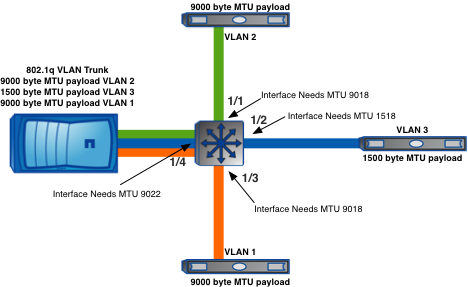
VLAN (Virtual Local Area Network) is a logical local area network (or LAN) that extends beyond a single traditional LAN to a group of LAN segments, given specific configurations. Since a VLAN is a logical entity, its creation and configuration is done completely in software.
How is a VLAN Identified?
Since a VLAN is a software concept, identifiers and configurations for a VLAN must be properly prepared for it to function as expected. Frame coloring is the process used to ensure that VLAN members or groups are properly identified and handled. With frame coloring, packets are given the proper VLAN ID at their origin so that they may be properly processed as they pass through the network. The VLAN ID then enables switching and routing engines to make the appropriate decisions as defined in the VLAN configuration.
Why Use VLANs?
Traditional network designs use routers to create broadcast domains and limit broadcasts between multiple sub-nets. This prevents broadcast floods in larger networks from consuming resources or causing unintentional denials of service unnecessarily. Unfortunately, the traditional network design methodology has some design flaws.
- Geographic Focus – Traditional network designs focus on physical locations of equipment and personnel for addressing and LAN segment placement. Because of this there are a few significant drawbacks:
- Network segments for physically disjointed organizations cannot be part of the same address space. Each physical location must be addressed independently and be part of its own broadcast domain. This can force personnel to be located in a central location or to have additional latency or connectivity shortfalls.
- Relocating personnel and departments can become difficult, especially if the original location retains its network segments. Relocated equipment will have to be reconfigured based on the new network configuration.
A VLAN solution can alleviate both of these drawbacks by permitting the same broadcast domain to extend beyond a single segment.
- Additional Bandwidth Usage – Traditional network designs require additional bandwidth because packets have to pass through multiple levels of network connectivity because the network is segmented.
A proper VLAN design can ensure that only devices that have that VLAN defined on it will receive and forward packets intended as source or destination of the network flow.
Types of VLAN
There are only two types of VLAN possible today, cell-based VLANs and frame-based VLANs.
- Cell-based VLANs are used in ATM switched networks with LAN Emulation (or LANE). LANE allows hosts on traditional LAN segments to communicate using ATM networks without having to use special hardware or software modification.
- Frame-based VLANs are used in Ethernet networks with frame tagging. The two primary types of frame tagging are IEEE 802.10 and ISL (Inter Switch Link is a Cisco proprietary frame-tagging). Keep in mind that the 802.10 standard makes it possible to deploy VLANs with 802.3 (Ethernet), 802.5 (Token-Ring), and FDDI, but Ethernet is most common.
VLAN Modes
There are three different modes in which a VLAN can be configured. These modes are covered below:
- VLAN Switching Mode – The VLAN forms a switching bridge in which frames are forwarded unmodified.
- VLAN Translation Mode – VLAN translation mode is used when the frame tagging method is changed in the network path or if the frame traverses from a VLAN group to a traditional or native interface that is not configured in a VLAN. When the packet needs to pass into a native interface, the VLAN tag is removed so that the packet can properly enter the native interface.
- VLAN Routing Mode – When a packet is routed from one VLAN to a different VLAN, use VLAN routing mode. The packet is modified, usually by a router, which places its own MAC address as the source and changes the packet’s VLAN ID.
VLAN Configurations
Different terminology is used between different hardware manufacturers when it comes to VLANs. As a result, there is often confusion at implementation time. Following are a few details and some examples to assist in defining VLANs so confusion is not an issue.
Cisco VLAN Terminology
Users need a few details to define a VLAN on most Cisco equipment. Unfortunately, because Cisco sometimes acquires the technologies it uses to fill their switching, routing, and security product lines, naming conventions are not always consistent. This article is focusing on only one Cisco switching and routing product line running Cisco IOS.
- VLAN ID – The VLAN ID is a unique value assigned to each VLAN on a single device. With a Cisco routing or switching device running IOS, the range is from 1-4096. When a VLAN is defined, the syntax “vlan x,” where x is the number the user would like to assign to the VLAN ID is usually used. VLAN 1 is reserved as an administrative VLAN. If VLAN technologies are enabled, all ports are a member of VLAN 1 by default.
- VLAN Name – The VLAN name is a text based name used to identify a VLAN, perhaps to help technical staff in understanding its function. The string to be used can be between 1 and 32 characters in length.
- Private VLAN – Define whether the VLAN is to be a private VLAN in the VLAN definition and what other VLAN might be associated with it in the definition section. When a Cisco VLAN is configured as a private vlan, this means that ports that are members of the VLAN cannot communicate directly with each other by default. Normally, all ports that are VLAN members can communicate directly with each other just as they would be able to if they were a standard network segment member. Private vlans are created to enhance the security on a network where hosts coexisting on the network cannot or should not trust each other. This is a common practice to use on web farms or in other high risk environments where communication between hosts on the same sub-net are unnecessary. The user should check Cisco documentation if he/she has questions about how to configure and deploy private VLANs.
- VLAN modes – in Cisco IOS, there are only two modes an interface can operate in, “mode access” and “mode trunk.” Access mode is for end devices or devices that will not require multiple VLANs. Trunk mode is used for passing multiple VLANs to other network devices or for end devices that need to have membership to multiple VLANs at once. If wondering what mode to use, use “mode access.”
Cisco VLAN implementations
VLAN Definition
To define a VLAN on a Cisco device, the user needs a VLAN ID, a VLAN name, ports to participate in the VLAN, and the type of membership the port will have with the VLAN.
- Step 1 – Log into the router or switch in question and get into enable mode.
- Step 2 – Get into configuration mode using “conf t.”
- Step 3 – Create the VLAN by entering “vlan X” where X is the ID the user would like to assign the VLAN.
- Step 4 – Name the VLAN by entering “name.” Replace with the string that the VLAN will be identified with.
- Step 5 – In order for the new VLAN to be a private vlan, enter “private-vlan primary” and “private-vlan association Y” where Y is the secondary VLAN to be associated with the primary vlan. For the private VLAN to be community based, enter “private-vlan community” instead.
- Step 6 – Enter “end” to exit configuration mode
- Step 7 – Save the configuration to memory by entering “wr mem” and to the network if needed using “wr net.” The user may have to supply additional information to write configurations to the network depending on the device configuration.
The user has now created a vlan by assigning it an ID and giving it a name. At this point, the VLAN has no special configuration to handle IP traffic nor are there any ports that are VLAN members. The next section describes how to complete the vlan configuration.
VLAN Configuration
A VLAN is not of much use if it has not been assigned an IP Address, the subnet netmask, and port membership. In normal network segment configurations on routers, individual interfaces or groups of interfaces (called channels) are assigned IP addresses. When VLANs are used, individual interfaces are VLAN members, do not have individual IP addresses, and generally do not have access lists applied to them. Those features are usually reserved for the VLAN interfaces. The following steps detail one method of creating and configuring a VLAN interface. NOTE: These steps have already assumed that the user logged into the router, got into enable mode, and entered configuration mode. These specific examples are based on the Cisco 6500 series devices.
- Step 1 – Enter “Interface VlanX” where X is the VLAN ID used in the VLAN definition above.
- Step 2 – This step is optional. Enter “description VLAN” where VLAN description details what the VLAN is going to be used for. Simply re-use the VLAN name used above if preferred.
- Step 3 – Enter “ip address
” where is the address you want to assign this device in the VLAN, andis the network mask for the subnet you have assigned the VLAN. - Step 4 – This step is optional. Create and apply an access list to the VLAN for inbound and outbound access controls. For a standard access list, enter “access-group XXX in” and “access-group YYY out” where XXX and YYY corresponds to access-lists previously configured. Remember that the terms are taken with respect to the specific subnet or interface, so “in” means from the VLAN INTO the router and “out” means from the router OUT to the VLAN.
- Step 5 – This step is optional. Enter the private VLAN mapping to be used if the port is part of a private VLAN. This should be the same secondary VLAN associated with the primary VLAN in the VLAN definition above. Enter “private-vlan mapping XX” where XX is the VLAN ID of the secondary VLAN to be associated with this VLAN.
- Step 6 – This step is optional. Configure HSRP and any other basic interface configurations normally used for the Cisco device.
- Step 7 – Enter “end” to exit configuration mode.
- Step 8 – Save the configuration to memory by entering “wr mem” and to the network if needed using “wr net.” The user may have to supply additional information to write configurations to the network depending on the device configuration.
Now the vlan is defined and configured, but no physical ports are a member of the VLAN, so the VLAN is still not of much use. Next port membership in the VLAN is described. IOS devices describe interfaces based on a technology and a port number, as with “FastEthernet3/1” or “GigabitEthernet8/16.” Once the user determines which physical ports he/she wants to be members of the VLAN, use the following steps to configure it. NOTE: These steps have already assumed that the user logged into the router, got into enable mode, and entered configuration mode.
For Access Ports
- Step 1 – Enter “Interface” where the name Cisco has assigned the interface to be associated with the VLAN.
- Step 2 – This step is optional. Enter “description ” whereis text describes the system connected to the interface in question. It is usually helpful to provide DNS hostname, IP Address, which port on the remote system is connected, and its function.
- Step 3 – This step depends on the equipment, IOS version, and requirements. Enter “switchport” if the interface should act as a switch port. Some hardware does not support switchport mode and can only be used as a router port. The user should check the documentation if he/she does not know the difference between a router port and a switch port.
- Step 4 – Only use this step if step 3 above was used. Enter “switchport access vlan X” where X is the VLAN ID of the VLAN that the port should be a member of.
- Step 5 – Only use this step if step 3 above was used. Enter “switchport mode access” to tell the port that it should be used as an access port.
- Step 6 – Enter “end” to exit configuration mode.
- Step 7 – Save the configuration to memory by entering “wr mem” and to the network if needed using “wr net.” The user may have to supply additional information to write configurations to the network depending on device configuration.
For Trunk Ports
- Step 1 – Enter “Interface” whereis the name Cisco has assigned the interface to be associated with the VLAN.
- Step 2 – This step is optional. Enter “description” whereis text describing the system connected to the interface in question. It is usually helpful to provide DNS hostname, IP Address, which port on the remote system is connected, and its function.
- Step 3 – This step depends on the equipment, IOS version, and requirements. Enter “switchport” if the interface should act as a switch port. Some hardware does not support switchport mode and can only be used as a router port. The user should check the documentation if he/she does not know the difference between a router port and a switch port.
- Step 4 – Only use this step if step 3 above was used. Enter “switchport trunk encapsulation dot1q.” This tells the VLAN to use dot1q encapsulation for the VLAN, which is the industry standard encapsulation for trunking. There are other encapsulation options, but some equipment may not operate with non Cisco equipment.
- Step 5 – Only use this step if step 3 above was used. Enter “switchport trunk allowed vlan XX, YY, ZZ” where XX, YY, and ZZ are VLANs that the trunk should include. Define one or more VLANs to be allowed in the trunk.
- Step 6 – Only use this step if step 3 above was used. Enter “switchport mode trunk” to tell the port to operate as a VLAN trunk and not as an access port.
- Step 7 – Enter “end” to exit configuration mode.
- Step 8 – Save the configuration to memory by entering “wr mem” and to the network if needed using “wr net.” The user may have to supply additional information to write configurations to the network depending on device configuration.
For Private VLAN Ports
- Step 1 – Enter “Interface” whereis the name Cisco has assigned the interface to be associated with the VLAN.
- Step 2 – This step is optional. Enter “description” whereis text describing the system connected to the interface in question. It is usually helpful to provide DNS hostname, IP Address, which port on the remote system is connected, and its function.
- Step 3 – This step depends on the equipment, IOS version, and requirements. Enter “switchport” if the interface should act as a switch port. Some hardware does not support switchport mode and can only be used as a router port. The user should check the documentation if he/she does not know the difference between a router port and a switch port.
- Step 4 – Enter “switchport private-vlan host association XX YY” where XX is the primary VLAN to be assigned, YY is the secondary VLAN to be associated with it.
- Step 5 – Enter “switchport mode private-vlan host” to force the port to operate as a private-vlan in host mode.
- Step 6 – Enter “end” to exit configuration mode.
- Step 7 – Save the configuration to memory by entering “wr mem” and to the network if needed using “wr net.” The user may have to supply additional information to write configurations to the network depending on device configuration.
The VLAN should now be properly implemented on a Cisco IOS device.
HP VLAN Terminology
HP’s Procurve line of switchgear is becoming more prevalent in enterprise and other business environments. As a result, it is common to have to integrate Cisco and Procurve hardware, which is a challenge because of terminology. Below, some VLAN terminologies are defined so there is less opportunity for confusion.
- VLAN ID – Fortunately, VLAN ids are pretty much the same everywhere, the only significant differences are the range of IDs that can be used. With Procurve devices, the number of VLANs is defined in the configuration. The default maximum VLANs supported on a Procurve device differs among models and firmware revisions, but is commonly set to 8. Newer Procurve hardware supports 4,096 VLAN ids, but only 256 concurrently defined VLANs on a single device. VLAN ID 1 is reserved for the “DEFAULT_VLAN” or the default administrative VLAN.
- VLAN names – VLAN names are text fields that assist technicians to identify VLANs. Procurve allows names up to 32 characters, but for it to properly display in menu configuration mode, limit the name to 12 characters.
- VLAN modes – Procurve has three modes of operation for VLANs on the chassis, Untagged, Tagged, and No. Untagged mode is Cisco’s access mode. This mode is used for ports that connect to end nodes or devices that will not be passing VLAN traffic forward. Tagged mode is the same as Cisco’s trunk mode. This mode is used for ports that are connecting to devices that will be passing VLAN traffic forward or for trunking multiple VLANs. No mode means that the port in question has no association whatsoever with that VLAN.
- Special note on “trunk” – Lots of confusion surrounds the word “trunk” when users go between vendor equipment. In Cisco’s case, trunking is only used with VLANs. Grouping multiple Ethernet ports into a single logical Ethernet group is called a channel-group. This is regardless of whether FEC or LACP is used for the channel properties. Procurve uses “trunk” to define a group of Ethernet ports using the HP trunking protocol and the term “Tagged” for what Cisco calls a VLAN trunk. Of course, these two technologies have nothing to do with each other, but confusion arises because of naming conventions.
HP Procurve VLAN Implementations
VLAN Definition
Most modern Procurve switches enable VLAN use by default, but if for some reason someone is using an older model, he/she should log into the switch, get into manager mode, go to the switch configuration menu (usually item 2), then the VLAN menu (usually item 8), then the VLAN support item (usually item 1), and make sure VLANs are enabled. If this setting is changed, reboot the switch to get it to activate properly. The configuration menu is useful for these kinds of activities, troubleshooting, and other things, but is a little more difficult for configuring multiple switches or for using configuration templates. So the rest of the HP Procurve configuration details will be provided for the console configuration mode. Aside from enabling VLAN support as a whole, VLAN definitions and configuration are created in the same place so the rest of the configuration examples will be provided under the VLAN configuration topic.
VLAN Configuration
Configuring VLANs on a modern Procurve is pretty simple. First, define the VLAN, set its properties, and then set up membership for ports and the VLAN mode they will support. The following list should help users accomplish these tasks. NOTE: HP has defined its interface ports by using a module/port convention. If someone has a non-modular chassis (such as the 3448cl), then ports are numbered only with numbers, such as 1 or 36. If the chassis is modular (such as the 5308) then the port’s number is prepended with the module slot, such as A1 or H6. No reference to the type of switch port (ethernet, fast ethernet, gigabit ethernet) is used for port reference.
- Step 1 – Log into the switch and get into manager mode. If after logging in the user ends up in the configuration menu, exit the configuration menu by selecting item 5 (in most cases) or by using the arrow keys on the keyboard to highlight the “Command Line (CLI)” item.
- Step 2 – Enter “conf t” to get into terminal configuration mode.
- Step 3 – Enter “vlan X” where X is the VLAN id of the VLAN to be created.
- Step 4 – Name the VLAN by entering “name” whereis a text string from 1 to 32 characters (12 characters if the configuration menu display is important). Use quotes when naming the VLAN.
- Step 5 – Give the VLAN an IP address by entering “ip address” whereis the IP address to be assigned to this switch in that subnet, andis the network mask for the subnet assigned.
- Step 6 – This step is optional. To assign some end node ports to the VLAN enter “untagged” whereis a list of ports either comma delimited if they are non-sequential or using a dash between list beginning and end if they are. An example of this is “untagged 1,3,5,7-16.” This would configure ports 1, 3, 5, and 7 through 16 to be untagged on that VLAN.
- Step 7 – This step is optional. To assign some VLAN trunk ports to the VLAN, enter “tagged” whereis a list of ports either comma delimited if they are non-sequential or using a dash between list beginning and end if they are. An example of this is “untagged 1,3,5,7-16.” This would configure ports 1, 3, 5, and 7 through 16 to be untagged on that VLAN.
- Step 8 – Enter “exit” to leave VLAN configuration mode.
- Step 9 – Exit configuration mode by entering “exit” again.
- Step 10 – Save the configuration by entering “wr memory.”
The HP Procurve VLAN is now successfully configured.
Vendor Summary
To integrate Cisco and HP Procurve hardware on the same network and use VLANs, there are only a few things to remember:
- For end nodes – Cisco uses “mode access” and HP uses “untagged” mode.
- For VLAN dot1q trunks – Cisco uses “mode trunk” and HP uses “tagged” mode.
- For no VLAN association – Cisco uses no notation at all, HP uses “no” mode in the configuration menu or VLAN support is turned off.
Tom
How long does it approximately take to set up 2 vlans on one switch?
se7en
thank you!
but is the configuration for tagging (trunk mod ein Cisco) same for all HP switches? I need to tagged ports in 2848 procurve. thanks!
john
Am writing a school project on VLAN implementation and design, pls where can get materials or write up? I need ur assistance, thnks.
sudhir
was good
Kiran
Hi Guys,
I need all of your suggestion regarding HP Procurve switch. The configuration is as follows:
hostname “production”
module 1 type J9147A
module 2 type J9149A
module 3 type J9149A
trunk 47-48 Trk1 Trunk
ip routing
vlan 1
name “DEFAULT_VLAN”
untagged 1-40,A1-A2,B1-B2,Trk1
ip address 10.1.153.13 255.255.255.192
ip address 10.1.154.1 255.255.255.192
jumbo
exit
router rip
exit
snmp-server community “public” unrestricted
spanning-tree Trk1 priority 4
+++++++++++++++++
hostname “transmission”
module 1 type J9147A
module 2 type J9149A
module 3 type J9149A
trunk 21-22 Trk1 Trunk
ip routing
vlan 1
name “DEFAULT_VLAN”
untagged 1-24,A1-A2,B1-B2,Trk1
ip address 10.1.154.13 255.255.255.192
ip address 10.1.153.1 255.255.255.192
jumbo
exit
router rip
exit
snmp-server community “public” unrestricted
spanning-tree Trk1 priority 4
Above two vlan configuration is two different switch config. Here i configured two ip to communicate both vlan. On system when i use gateway of particular vlan ip, than i am able to access the other vlan.
Now here i want your valued info, that how can i communicate other vlan without using second ip of other vlan. I want to remove this second ip and keep the communication running between two vlan.
Anyone can guide me.
Kiran
udhfsv
wtf this is no help at all no offence
Raz
I have HP MSM410 access points which I need to connect to Cisco 3560 switch??
I used to connect HP ProCurve with MSM410 in VLAN 199 so I configured VLAN 199 with untagged port 10 (WAP ports), tagged 24 (uplink port).
ALL PCs connected via access points are in VLAN 198 so I configured VLAN 198 with Tagged port 10 (WAP) and 24 (uplink).
Now my question is how can I configure WAP connected Cisco Switch port 10 with access vlan 199 and trunk vlan 198 if HP called Tagged = Trunk, and Untagged = Access?
OW
Hi,
Thanks very helpful, and easy to understand.
BNS
Hi,
I’m doing a project in Networking and would like to give reference to this page, could you please tell me whom I should cite?
Thank you
BNS
Sabina
Hello
Is it possible to have 1 vlan with one untagged port, and another vlan with the same port as tagged?
Will.Spencer
Are you using 802.1Q or Cisco ISL? What is the make and model of your switch?
Most vendors assign all untagged packets to whatever you have defined as the default VLAN.
Sabina
Its a HP procurve.
This is what I got:
Default VLAN 1
VLAN 200
—–
Default VLAN 1: untagged 1-26
VLAN 200: tagged 1, 24
—–
Will this work? The default vlan should act like a native vlan, and in a HP-switch I cant configure native vlans, so this setup should work as a native vlan?
Charles
Hi Sabina,
Did you have a response to this question as I too am interested in how this would work…
Thanks,
C
don
yes it will work. remember that when you have VLAN 1 untagged “port numbers”. it means that those ports are tagged ports in another VLAN. for untagged ports it should be VLAN 1 no untagged “port number”
v2jamy
is it possible that in a network consisting of switches from different vendors we end up having non unique vlan id
Jason Irby
Great post – relevant and quite useful. Thanks.
AustinMarton
Hello.
Could you please tell me where you got this information? Do you have any source you can cite? This article (and mirrored versions of it on other blogs) is the only one I can find on the net that uses the terms “VLAN Switching Mode”, “VLAN Translation Mode” and “VLAN Routing Mode”. I can’t find those terms in the 802.1Q standard either.
Thanks,
Austin.
admin
From designing, building, and maintaining switched networks…
Chazza
Hi
I am not sure I understand the diffrence between step 6 and step 7. They both seem to read the same as it seems you use the untagged command in step 6 to untag ports and the tagged command in step 7 to again untag ports. I am struggling with this notion of untagged/tagged so any help would be great
Thanks
Chaza